Demos and sales calls
Walk a customer through your product on Zoom, Meet or Teams without anyone asking where your mouse is.
Tapper swaps your pointer for a cartoon glove on a long, wobbly stick. Nobody watching your demo, call or recording will ever ask “wait, where are you pointing?” again.
Free forever · MIT open source · macOS 14 or later
brew install --cask iamzifei/tap/tapper
Psst: up here, your pointer is a glove. Click to poke.Tap anywhere up here to poke.
Recorded from the real app on a Mac: three hands, a few colours, and what fast clicking does.
A glove on a stick, in place of your pointer.
Tapper is a free menu-bar app for the Mac. Switch it on and your mouse pointer becomes a cartoon glove on a long, springy stick. The fingertip sits exactly where your pointer is, so clicking, dragging and selecting work just like before. Every click makes the glove poke. Switch it off and your normal arrow is back.
Look for the little hand icon. No Dock icon, no window to manage.
It starts hidden. One shortcut brings the glove out, the same one puts it away.
In every app and on every display, because it is drawn on top of the screen.
Nobody loses your pointer again.
On a call or in a recording, the Mac’s arrow is tiny. People lose it, and you end up saying “up here… no, the other one”. A big glove that swings as it moves is easy to follow, and the poke on every click shows exactly when you mean “this one”.
Walk a customer through your product on Zoom, Meet or Teams without anyone asking where your mouse is.
Classes, workshops and onboarding: people follow the hand instead of hunting for the arrow.
Viewers can see where you click even on a phone screen, and you don’t need to add highlights in editing.
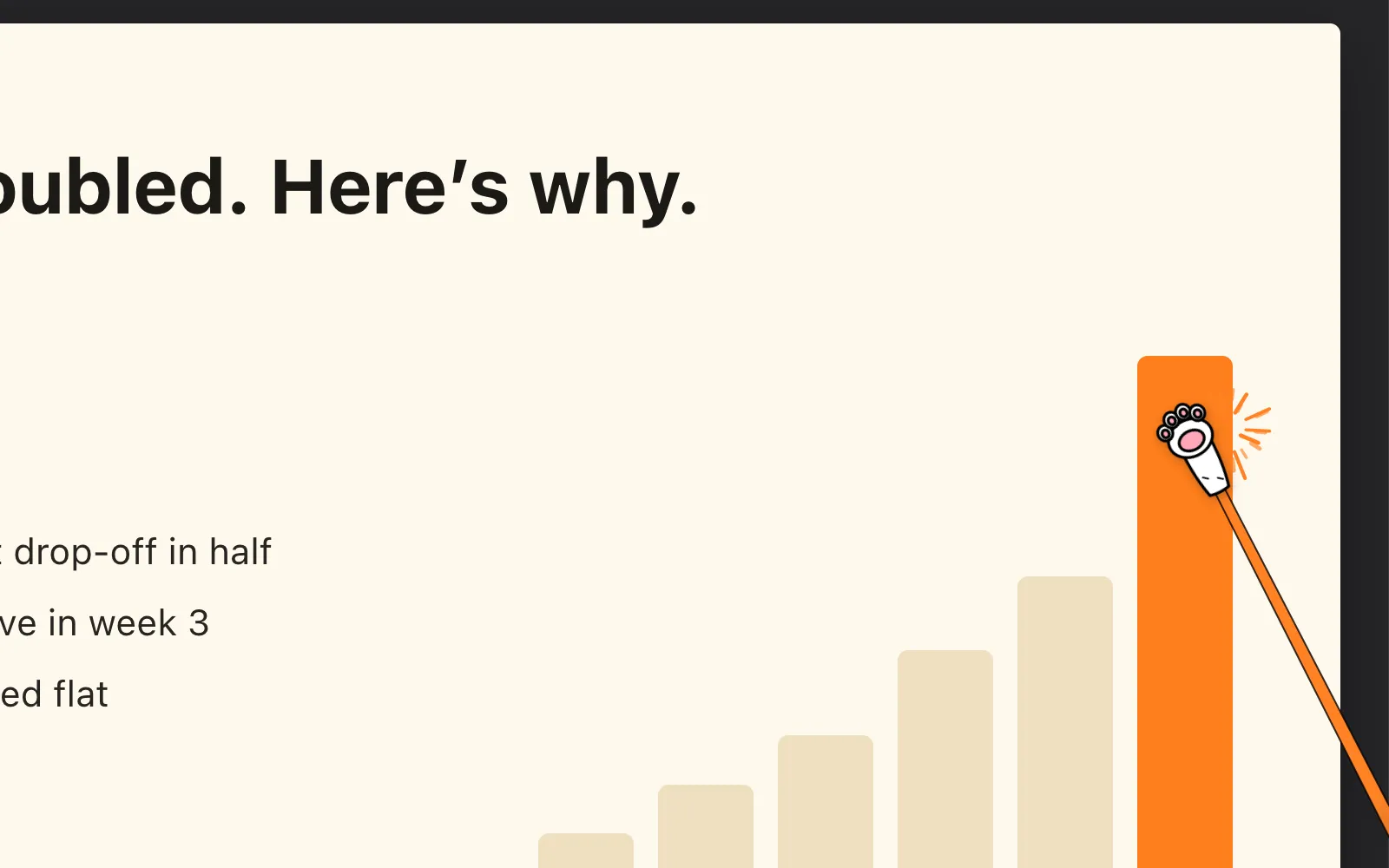
Point and poke at a chart in Presentation mode, without accidentally clicking something underneath.
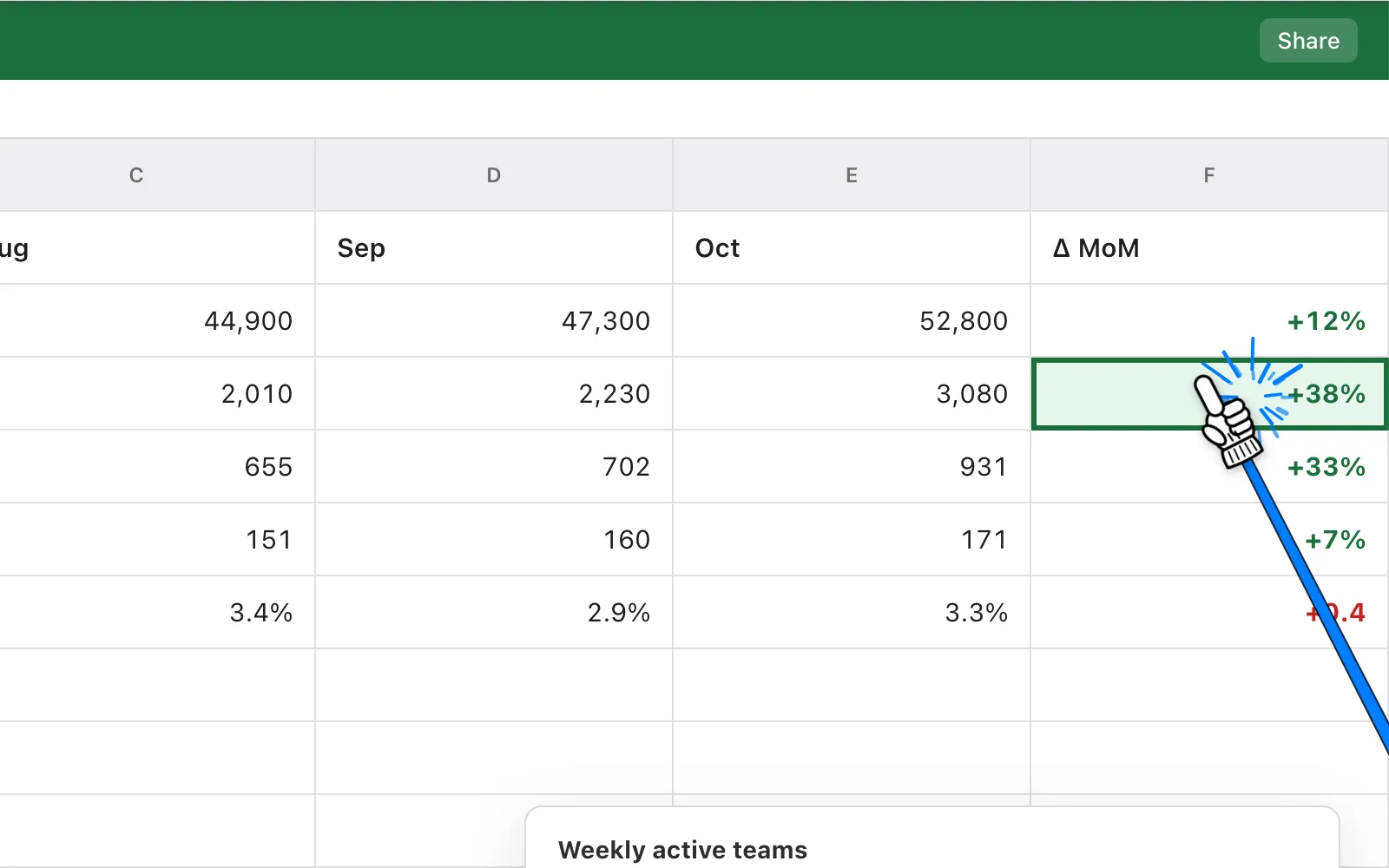
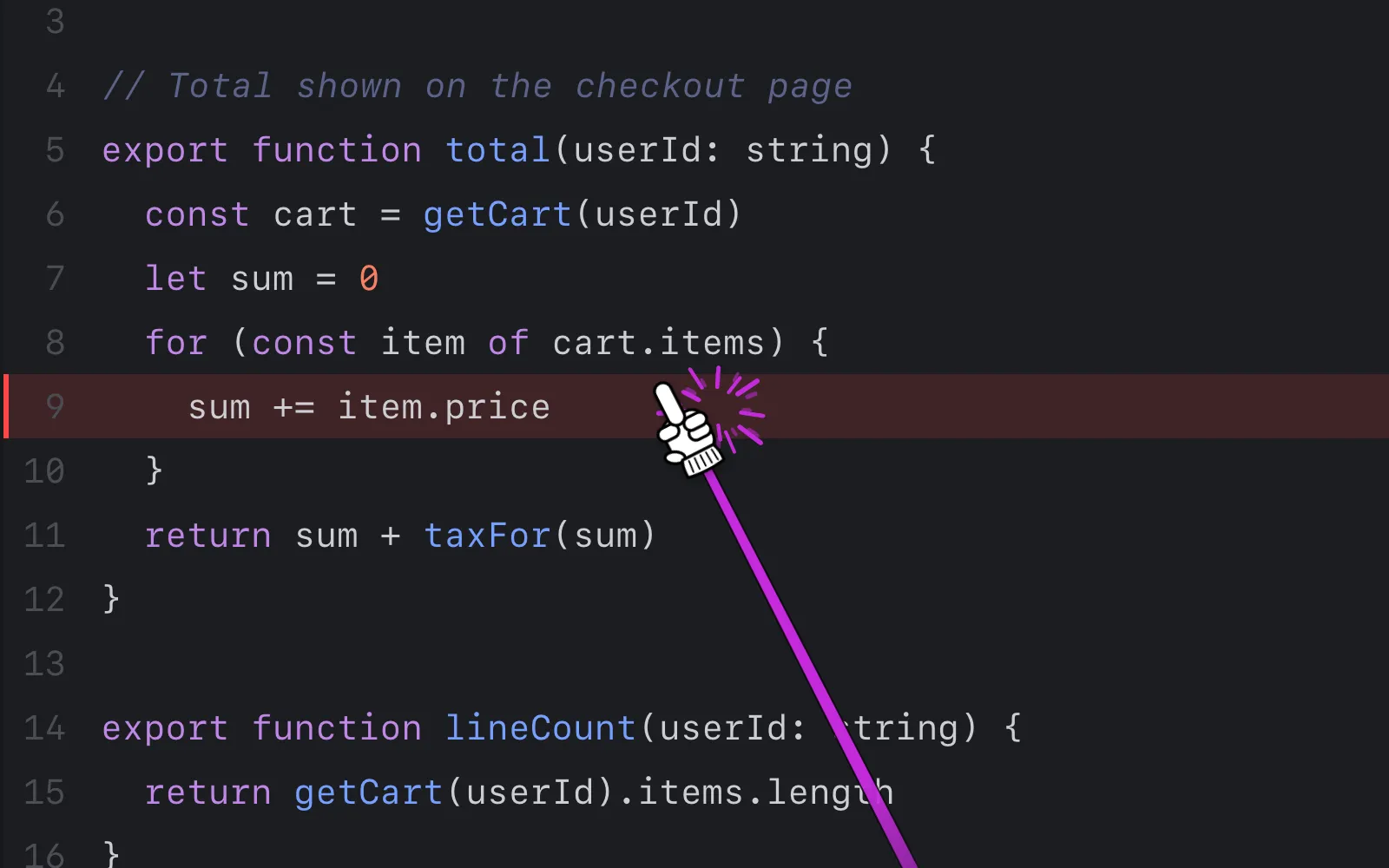
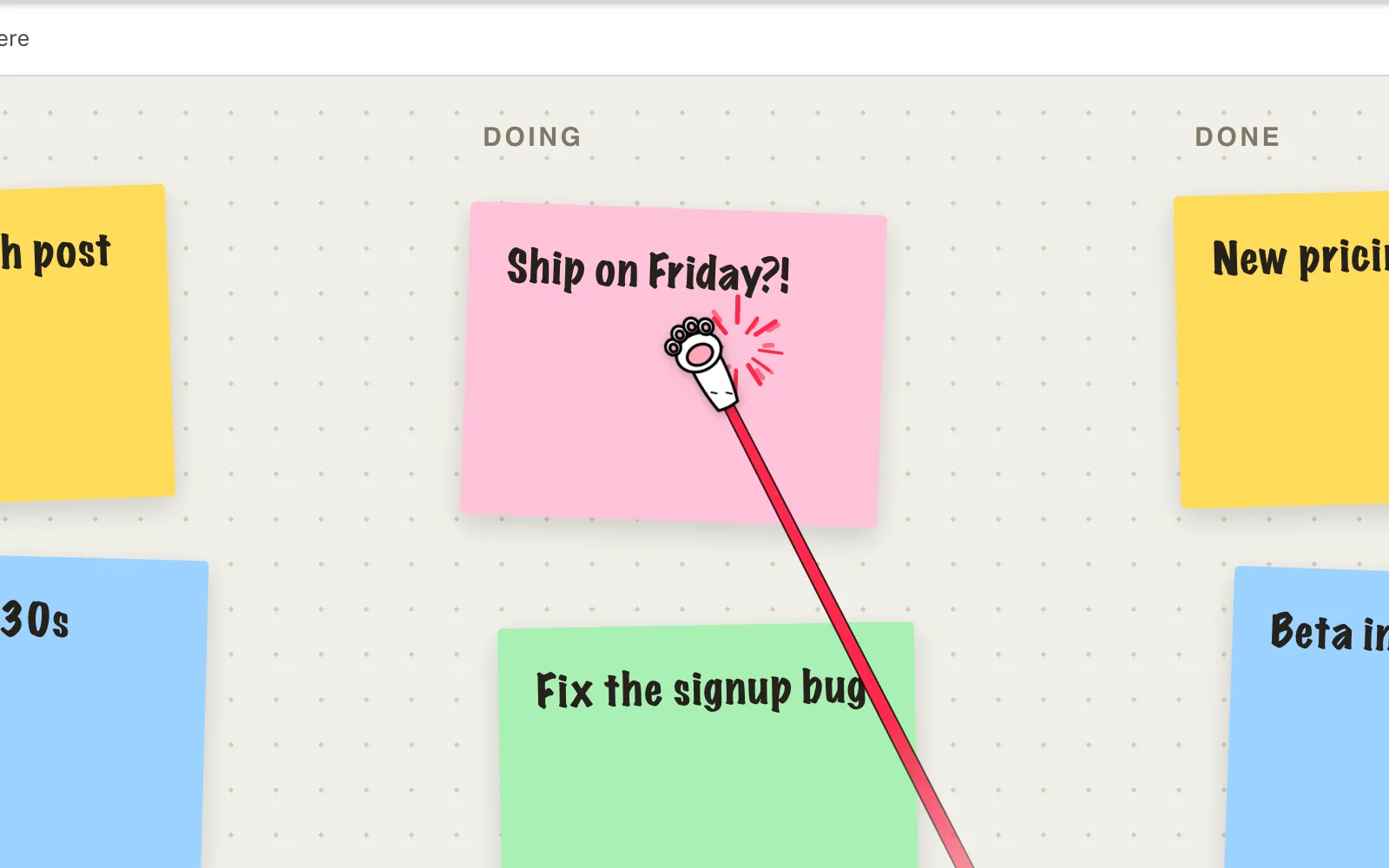
*when you share or record your whole screen

The system arrow is hidden on every display. The glove follows your pointer, and its fingertip is exactly where you’re aiming.
It hangs toward the bottom-right, fades out at the far end, and swings on a spring. Move fast and it lags and wobbles.


Tiny hand with a pointing finger, Cat paw with pink beans, or Middle child, for the cheeky ones.
Every click jabs forward with comic impact lines. Click fast and the hits get bigger, all the way to a starburst.
Five steps from “Shy finger” to “In your face”: size, stick length and how hard it pokes, all in one slider.
Show or hide the glove from any app. Your normal arrow comes straight back.
Clicks only poke, they never reach the app underneath. The keyboard keeps working, so slides advance as usual.
Works across every display and shows up in screen shares and recordings, because it’s drawn on screen.
A tapper:// URL scheme lets Shortcuts, Raycast, Stream Deck or a shell script drive it.
Free forever · MIT open source · macOS 14 or later
Up and running in two minutes.
Download Tapper.dmg, open it and drag Tapper into Applications, or run brew install --cask iamzifei/tap/tapper in Terminal. Then open Tapper. It needs macOS 14 or later, and it is signed and notarized by Apple.
A short welcome guide opens the first time. After that Tapper sits in the menu bar as a little hand icon. The glove starts hidden, so nothing changes yet.
Press ⌃ ⌥ P in any app, or click the menu-bar icon and choose “Show pointer”. Press it again to hide the glove and get your normal arrow back. The icon fills in while the glove is on.
Click the menu-bar icon. Choose Tiny hand, Cat paw or Middle child. Drag the Pointer mood slider across its five steps, from Shy finger to In your face: each step makes the glove bigger, the stick longer and the poke harder.
In the same menu: Color has eight stick colours. Animate on click turns the poke animation on or off. Knock sound plays a short knock on each click (it is on at first), with a Volume slider right below.
Press ⌃ ⌥ T and clicks only poke: they no longer reach the app underneath, while the keyboard keeps working, so slides still advance. The first time, macOS asks for Accessibility permission: allow Tapper in System Settings → Privacy & Security → Accessibility, then press ⌃ ⌥ T again. Press ⌃ ⌥ T once more to leave.
Also in the menu: Launch at login, Language, Welcome Guide… (to see the intro again) and Check for Updates….
Yes. Tapper is open source under the MIT licence: free to download, use, share and modify. The code is on GitHub.
Yes, when you share or record your whole screen. The glove is drawn on screen, so it appears there across all your displays. If you share a single window, the glove sits above that window and is not part of it.
Yes. Only the look changes: clicks, drags and selections land exactly where the fingertip is. If you want clicks to only poke, turn on Presentation mode with ⌃ ⌥ T.
Presentation mode needs Accessibility permission, because that is how macOS lets an app stop clicks from reaching other apps. macOS asks the first time you turn it on. If you never use Presentation mode, you never need to grant it.
No. Tapper draws a glove and reacts to your clicks so it can poke. It doesn’t record your screen, your keystrokes or what you click on. It’s open source, so you can read exactly what it does.
Yes. Tapper answers to tapper:// links, so Shortcuts, Raycast, Stream Deck, a shell script or a link in your slide notes can drive it.
open "tapper://show"      # also: hide, toggle
open "tapper://poke"
open "tapper://presentation"
open "tapper://set?style=paw&mood=3&color=2&sound=off"
set accepts style (tiny, paw, middle), mood (0 to 4), color (0 to 7, in the order of the colour menu: Black, White, Orange, Red, Pink, Purple, Blue, Green), sound and animate.
Any Mac running macOS 14 or later. It’s a native Swift app and a universal binary, so it runs natively on both Apple silicon and Intel.
brew install --cask iamzifei/tap/tapper